
How to connect your support email to Samvaads
Most teams have several addresses: contact@, support@, billing@. Connect each one as a mailbox, give it a group, and every email lands as a ticket with an owner and an SLA clock, instead of sitting in a shared inbox nobody is sure they own.
What you need
- Admin access to your Samvaads workspace
- Access to the mailbox you are connecting, or to your mail server’s IMAP/SMTP settings
Steps
Open Email integration
Go to Admin → Channels → Email. The Mailboxes tab lists every connected address with its assigned group and status; Your email domains is beside it.
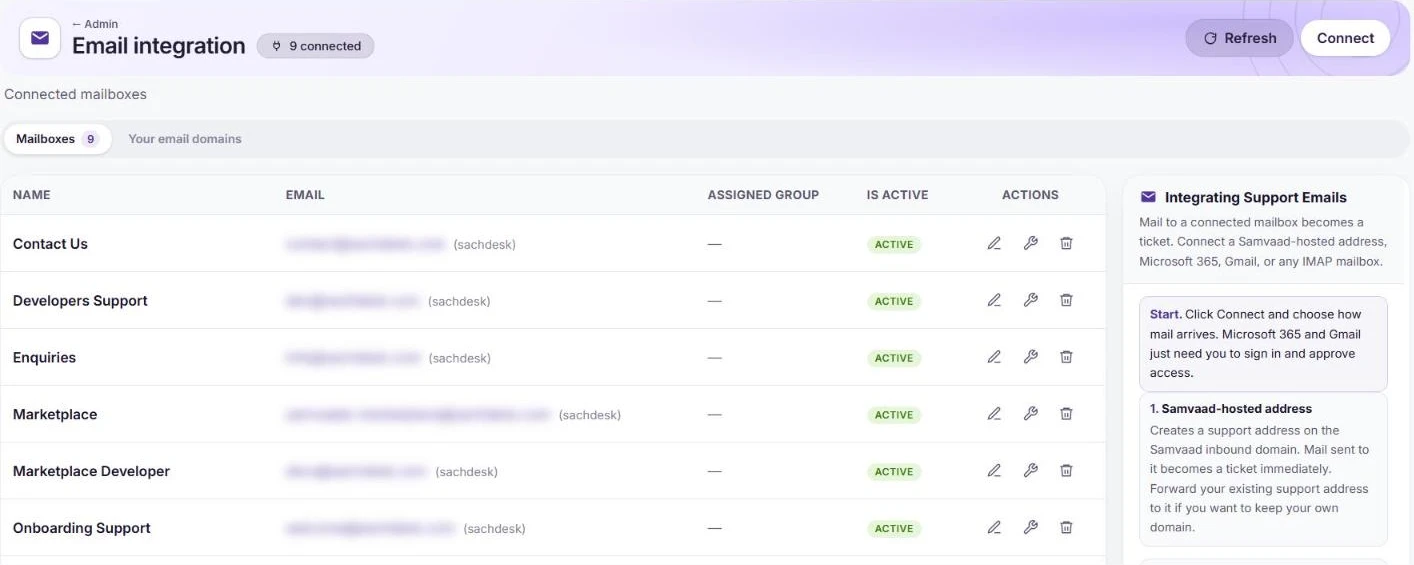
Connected mailboxes (addresses blurred). Choose how mail arrives
Choose Connect. Gmail and Microsoft 365 just need you to sign in and approve access. Samvaad email creates a hosted address on your workspace domain; forward your existing support address to it if you want to keep your own domain. Custom IMAP / SMTP brings your own mail server.
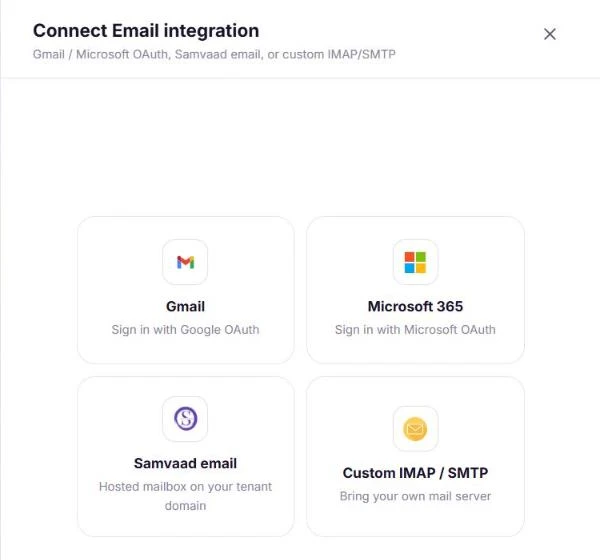
Four ways to connect a mailbox. Assign a group
Edit the mailbox and pick the group that should own its tickets, so billing mail goes to billing and support mail to support.
Send a test email
Email the address from another account. It arrives as a ticket in Samvaads with the sender matched to a contact.
Frequently asked questions
Can we keep our own support address?
Yes. Connect it directly through Gmail, Microsoft 365 or IMAP/SMTP, or forward it to a Samvaad-hosted address so customers keep writing to the address they know.
Can an AI agent answer email?
Yes. Agents with the Email channel mode can be assigned to mailboxes; for email, an AI resolve step with text replies works better than button-style questions.
Want us to set it up with you?
Early customers onboard with our team beside them.