
How to add Samvaads chat, and a voice assistant, to your website
The website widget runs the same AI agents as WhatsApp, Instagram and Facebook, so a visitor on your site gets the same answers as a customer on WhatsApp. Visitors can also tap Talk to us and speak to your AI assistant instead of typing.
What you need
- Admin access to your Samvaads workspace
- Access to your website’s HTML or tag manager
Steps
Choose where chat shows
Go to Admin → Channels → Website widget. Under Where it shows, switch chat on for your website, your customer portal, or both. You can limit portal chat to signed-in customers, and only remember visitors after cookie consent if your banner calls `SamvaadWidget.consent(true)`.
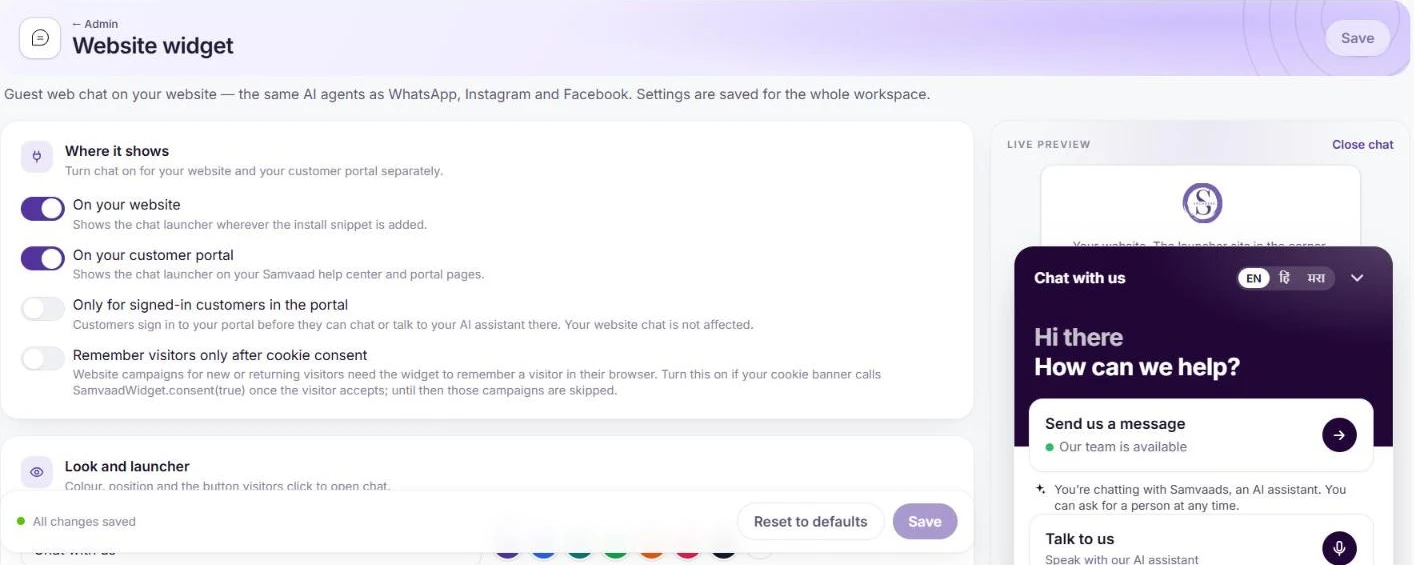
Settings on the left, a live preview on the right. Style the launcher
Under Look and launcher, pick the colour, position and the button visitors click to open chat. The live preview updates as you go. Save.
Install it on your site
Under Install on your website, choose Copy snippet and paste it just before `</body>` on every page where chat should appear. The snippet is unique to your workspace.
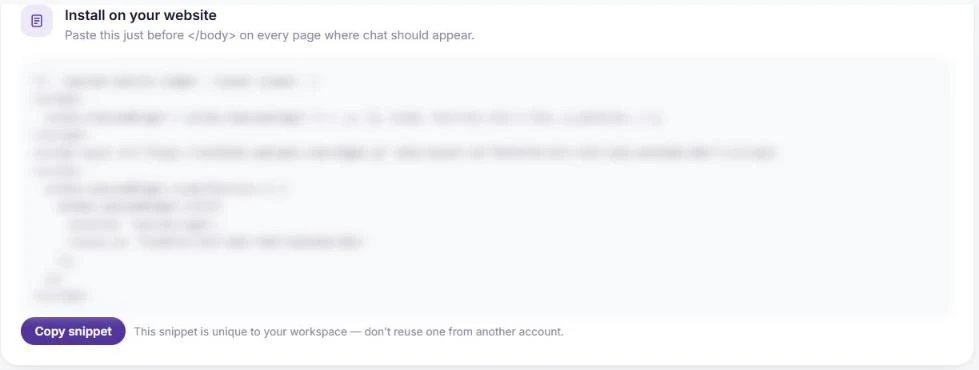
The install snippet (blurred here; yours is unique to your workspace). Link signed-in visitors (optional)
An email typed into the chat is kept as unverified and never joins a customer record. To link signed-in visitors to their contact, sign their email on your server with the secret under Identity verification and pass it to the widget.
Frequently asked questions
Which AI agent answers on the website?
A published AI agent with the Chat channel mode, the same kind that answers on WhatsApp, Instagram and Facebook. Switch on Voice calls in its settings if you want it to answer when visitors choose Talk to us.
Can visitors choose a language?
Yes. The widget header offers English, Hindi and Marathi.
Want us to set it up with you?
Early customers onboard with our team beside them.