
How to connect Instagram and Facebook Messenger to Samvaads
With Instagram and Messenger connected, DMs and comments sit in the same inbox as WhatsApp and email, with the same customer record, so the people answering comments and the people answering chats work from one place.
What you need
- An Instagram professional account (Business or Creator) with admin access
- A Facebook Business Portfolio with your Page connected to it, and admin access to the Page
Steps
Connect Instagram
Go to Admin → Channels → Instagram and choose Add new Instagram. Instagram asks you to log in, then shows the permissions Samvaads needs for messages, comments and publishing posts: keep them all allowed. If you land on your Instagram feed after logging in, come back and choose Add new Instagram again.
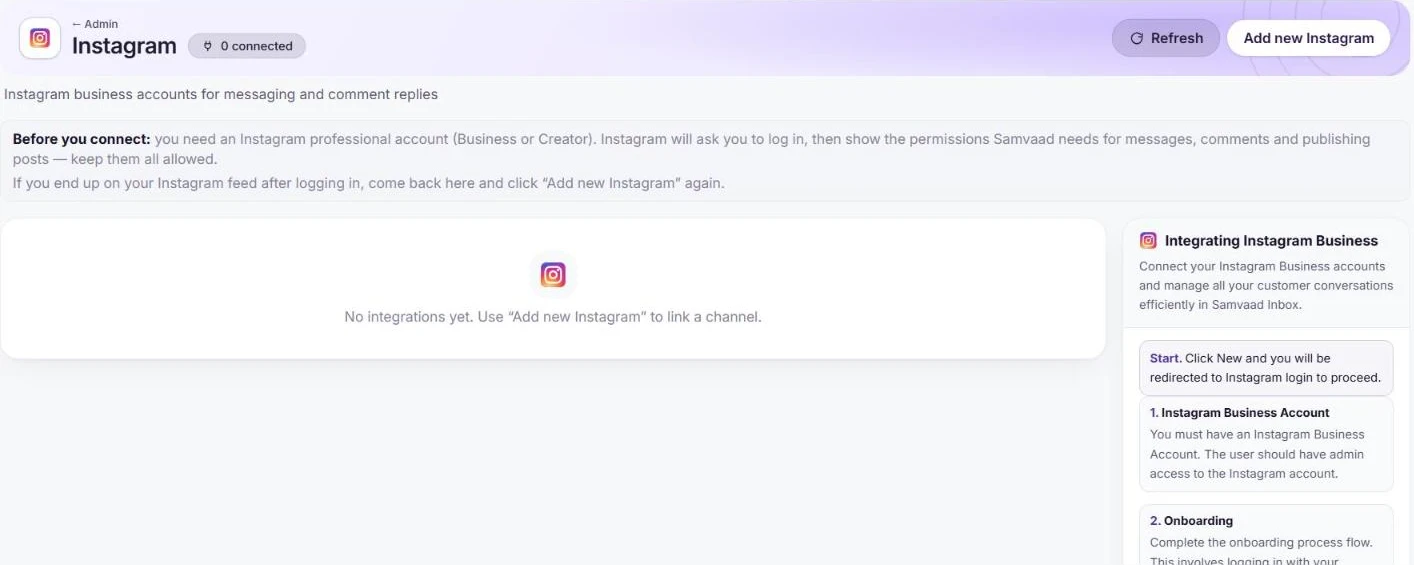
What Instagram needs before you connect. Connect Facebook Messenger
Go to Admin → Channels → Facebook Messenger and choose Add new Facebook. Log in to Facebook and pick the Page that is connected to your Business Portfolio.
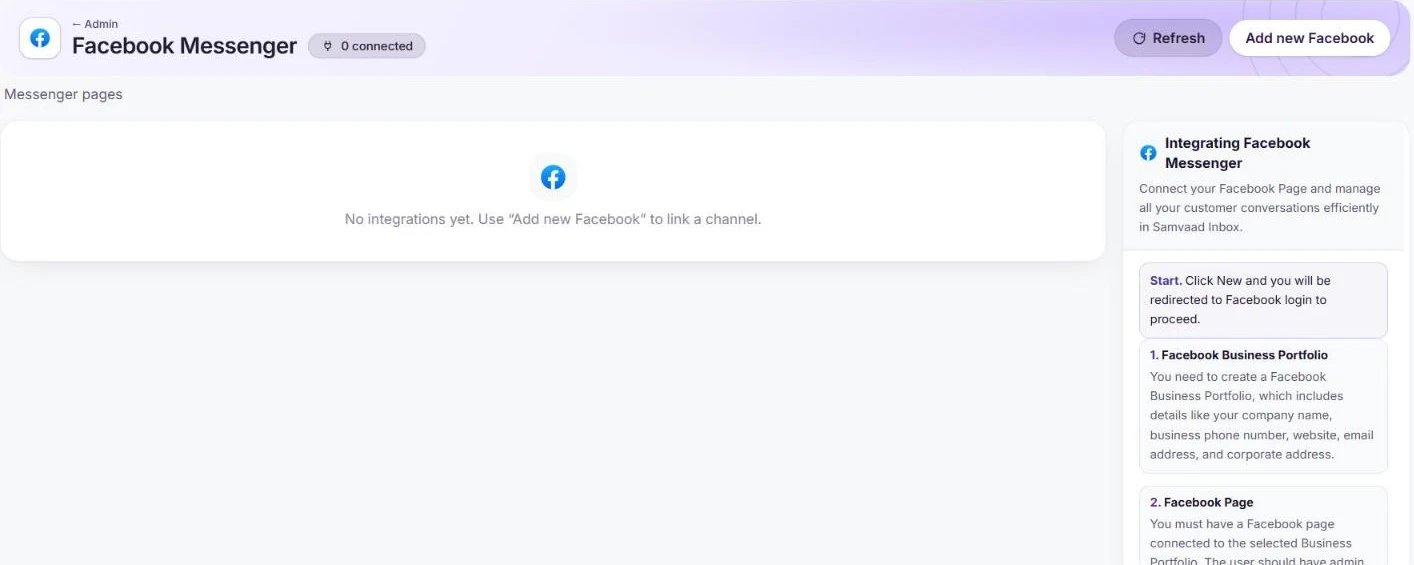
Messenger needs a Page in your Business Portfolio. Send a test message
Message your Instagram account and your Page from another account. Both arrive in the Inbox; Instagram comments arrive next to DMs.
Frequently asked questions
Can an AI agent answer Instagram and Messenger?
Yes. Agents with the Chat channel mode work on Instagram, Facebook, WhatsApp and the website widget.
Want us to set it up with you?
Early customers onboard with our team beside them.