
How to set up quick replies, email templates and ticket templates
Most teams type the same twenty answers every week. Saving them once keeps answers consistent and fast, and placeholders keep them personal: the customer’s name is filled in for you.
What you need
- Admin access to your Samvaads workspace
Steps
Add quick replies
Go to Admin → Helpdesk setup → Quick replies. Create categories such as Greetings, Billing or Shipping, then add replies with New reply. Agents insert them into tickets and chats, with placeholders like the customer’s name filled in.
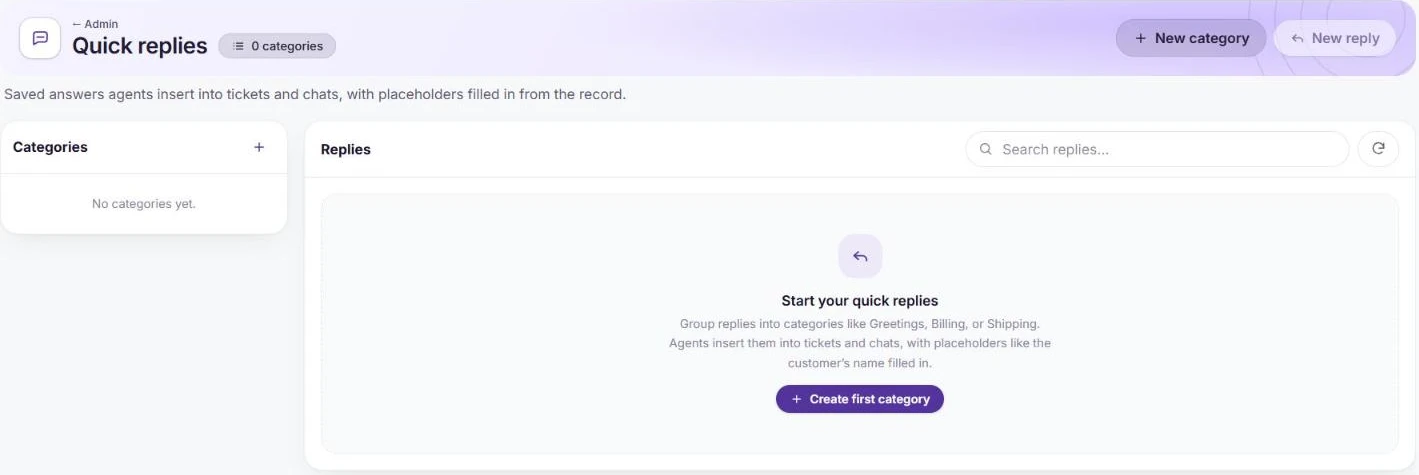
Quick replies, grouped by category. Design email templates
In Email templates, create branded HTML replies agents insert from a ticket’s Reply or Forward. The same page holds the ticket acknowledgement sent when a new email ticket arrives (picked in Helpdesk settings) and the email sent with a quote or invoice. Optional conditions (group, type, status, priority) show a template only where it fits; placeholders such as `{{contact.firstname}}` fill from the ticket.

The default ticket acknowledgement, and room for your own templates. Create ticket templates
In Ticket templates, save ready-made ticket drafts. Agents pick one on the New ticket page and, once the requester is chosen, the subject, description, status, priority, assignee, tags and custom fields fill in. The body can be written there or use one of your email templates.
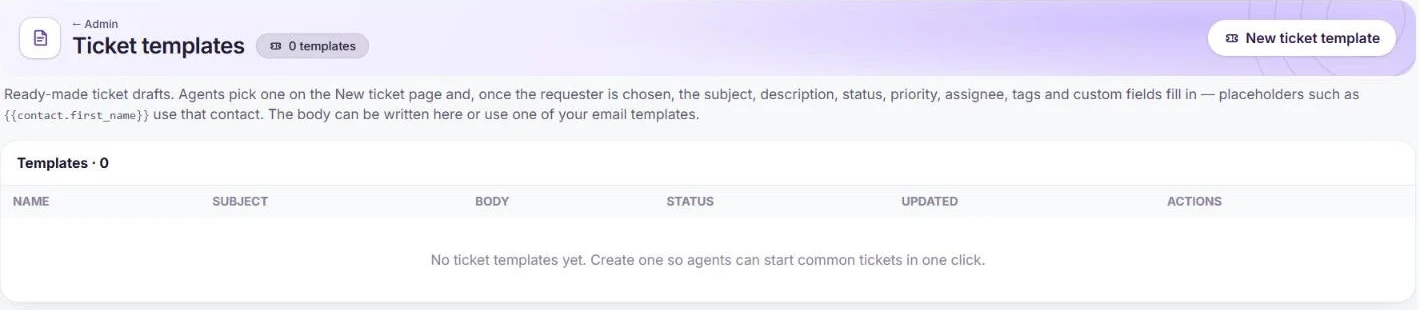
Ticket templates fill in a new ticket in one click.
Frequently asked questions
Can Copilot write the reply instead?
Yes. Copilot drafts replies from the thread and your knowledge base for the agent to review; quick replies are for the answers you want word for word.
Want us to set it up with you?
Early customers onboard with our team beside them.