
How to let customers book appointments inside WhatsApp
Booking over chat usually means a back-and-forth: “Does Tuesday work?” “What about 4pm?” With WhatsApp booking, the customer taps Book a time and a form opens inside WhatsApp. They pick the kind of appointment, a day and one of your open times, and confirm. The booking lands in Appointments like any other, the customer gets a confirmation in the chat with a link to reschedule or cancel, and an email too when you have their address.
What you need
- A Samvaads plan that includes Appointments
- At least one appointment type with Customers can book it themselves (public booking page) switched on, and hosts with their working hours set
- A connected WhatsApp number (how to connect it)
Steps
Check your appointment types
Go to Admin → Appointment types. Make sure each type you want customers to book has its hosts and has Customers can book it themselves (public booking page) switched on; only those types appear in the form. Hosts set their hours under Appointments → My hours.
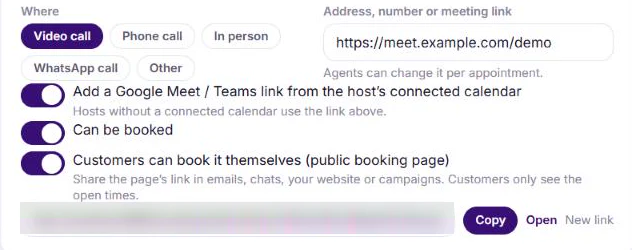
Only types with a public booking page are offered in the form. Open the number’s WhatsApp booking settings
Go to Admin → Channels → WhatsApp (WABA), choose Configure on the number and scroll to WhatsApp booking. It shows the state of the booking form and of the number’s encryption key.
Add the booking form
Choose Add booking form. Samvaads creates the encryption key WhatsApp needs for forms on this number, then publishes the booking form at Meta. When it reads Published, the form is ready to send. This takes effect at once; you do not need to save the panel.
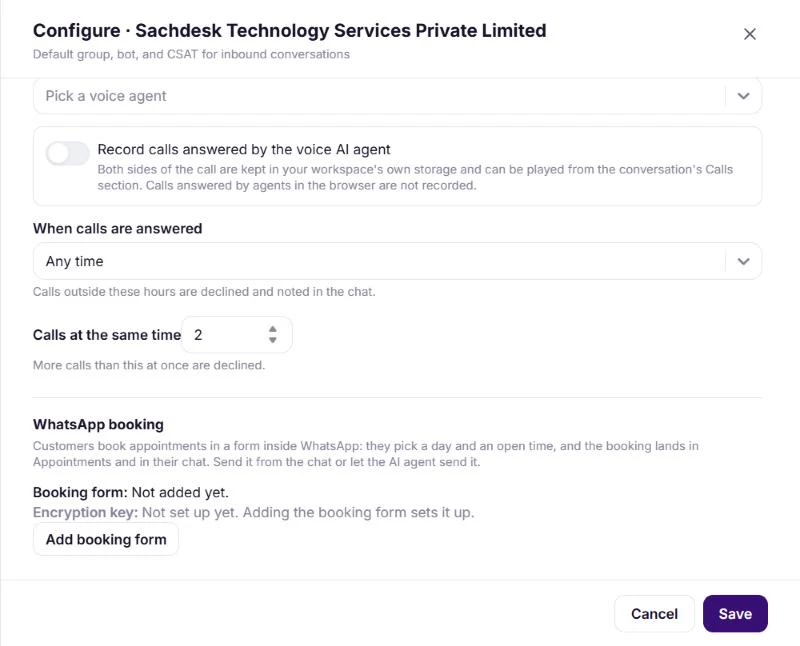
WhatsApp booking, before the form is added. Repeat for each number
Each WhatsApp number needs its own booking form. If you have several numbers, open Configure on each one and add the form there too.
Send it from the inbox
In a WhatsApp conversation, choose Send WhatsApp Flow in the reply bar and pick the one marked booking form. The message and button text are filled in for you (“Pick a day and a time that suit you.” and Book a time); change them if you like, then send. This works while the 24-hour reply window is open.
Let your AI agent send it
In Admin → Automation & AI → AI agents, add the Send WhatsApp booking form tool to the agent. On WhatsApp, the agent then sends the form when someone wants to book instead of listing times in the chat. The Demo / appointment booking agent template already uses it on WhatsApp. On other channels the agent offers times and books them itself.
Or put it on a template button
Create a WhatsApp template with a Flow button that opens the booking form and get it approved by Meta. Templates can be sent outside the 24-hour window, so you can use them in campaigns, for example to invite past customers to book their next visit.
What the customer sees
- Type: which appointment they want. This screen is skipped when there is only one type.
- Day: the days with open times, up to 14 days ahead.
- Time: the open times that day, shown in the customer’s own time zone.
- Details: their name and phone, if you do not already have them. Email is optional.
- Confirm: a summary to check, then the booking is made and the confirmation arrives in the chat.
Frequently asked questions
What if someone else takes the time while the customer is choosing?
The booking is refused with a clear message, and the customer can pick another open time in the same form.
The number says it already has a WhatsApp Flows key. What now?
That key was set up outside Samvaads, and Samvaads will not replace it, because something else may rely on it. Contact support and we will help you set up WhatsApp booking on that number.
How do we know if something goes wrong with the form?
If Meta limits or blocks the form, for example because answers were failing or slow, admins are notified and the WhatsApp booking section on the number shows what happened.
Can customers reschedule or cancel?
Yes. The confirmation message in the chat, and the email when there is one, includes a link to reschedule or cancel.
Want us to set it up with you?
Early customers onboard with our team beside them.