
How to deploy a voice AI agent on your WhatsApp number
Customers already chat with your WhatsApp number. With calls on, they can tap the call button in that chat and talk to you. A voice AI agent can take those calls on its own, or pick up when your team is busy, using the same knowledge base and tools as your chat agent. Every call is noted in the customer’s WhatsApp chat, with the transcript when the agent answered.
What you need
- A Pro or Enterprise plan (WhatsApp calls are a plan feature; the voice agent also needs AI agents)
- A connected WhatsApp number that can message at least 2,000 customers a day; the Calls panel warns when the limit is lower
- Knowledge base articles covering what callers usually ask
Steps
Open the agent you want on calls
Go to Admin → Automation & AI → AI agents. Open an existing agent with Open builder, or create one with New agent (or Describe with Copilot to get a first draft). Each card shows which channel modes the agent has.
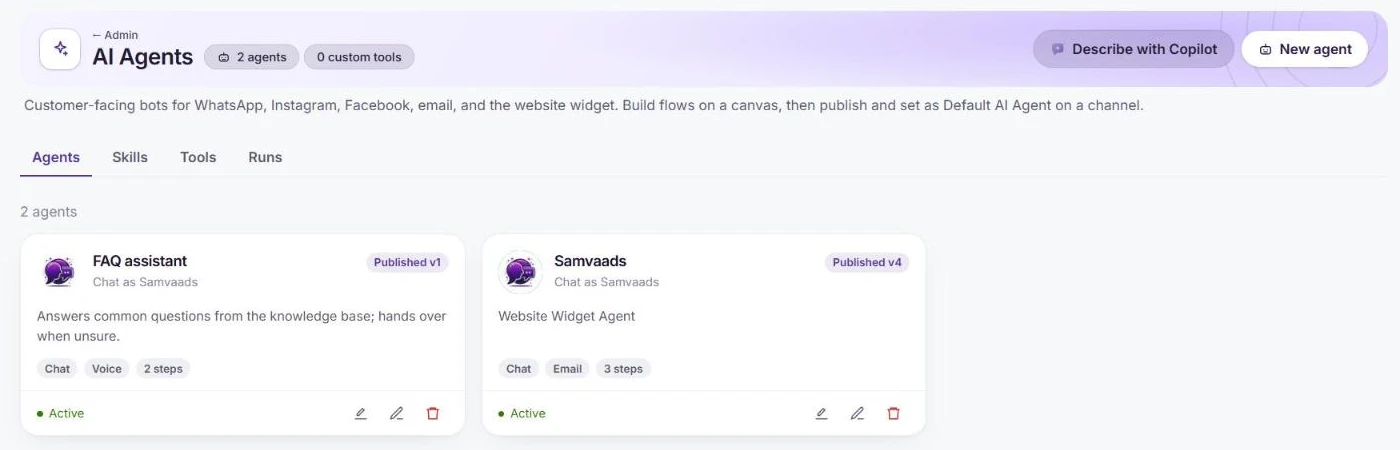
The AI Agents page. The FAQ assistant here runs on Chat and Voice. Switch on Voice calls and pick the voice
In Agent settings, under Channel modes, tick Voice calls (WhatsApp calls / phone AI). Choose a Female or Male voice, then the Languages on calls: English, Hindi, Marathi and Telugu. Leave Ask new callers which language they want on so the first call asks, and the choice is saved on the contact for next time.
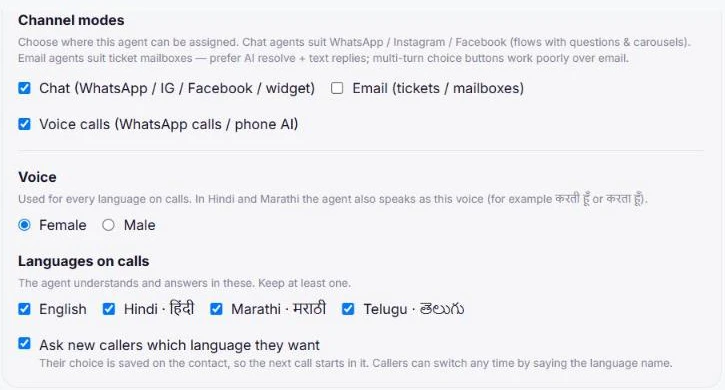
Channel modes, voice and call languages in Agent settings. Give it the right knowledge and tools
The agent answers from your knowledge base and the tools you allow, such as Knowledge base search, Create ticket and Handoff to human. On calls it also sees the caller’s chats and tickets, and opens a callback ticket with a summary when a person should follow up.
Test it, then publish
Use the Preview tab to ask the questions callers really ask. The preview runs the draft flow and sends nothing to customers, and it shows each tool call so you can see where answers came from. When it looks right, Publish: only the published version runs on channels.
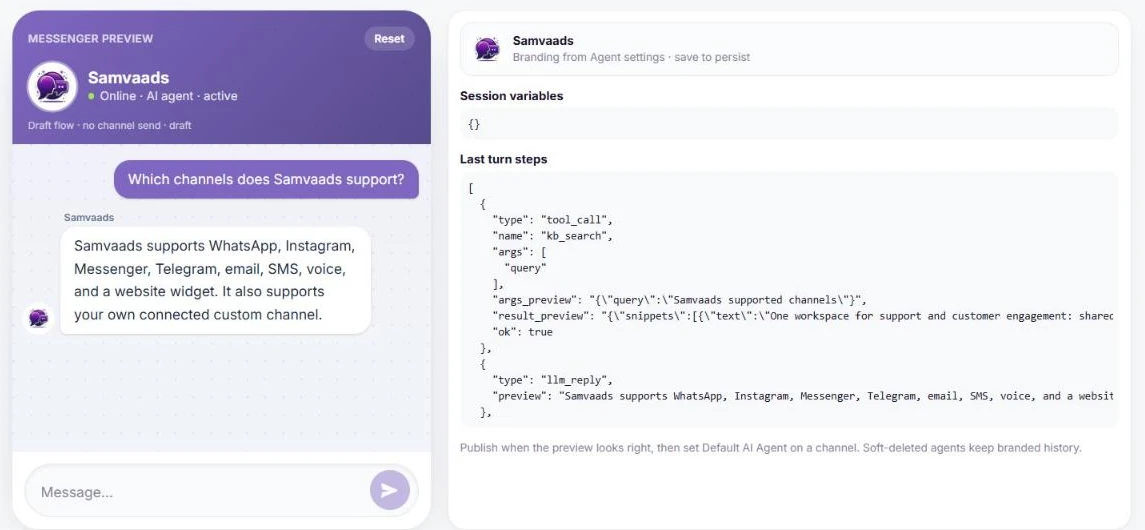
Preview shows the answer and the knowledge base search behind it. Turn on calls for the WhatsApp number
Go to Admin → Channels → WhatsApp (WABA), choose Configure on the number and scroll to Calls. Switch on Customers can call this number; Samvaads turns calling on at Meta, which changes the call button customers see.
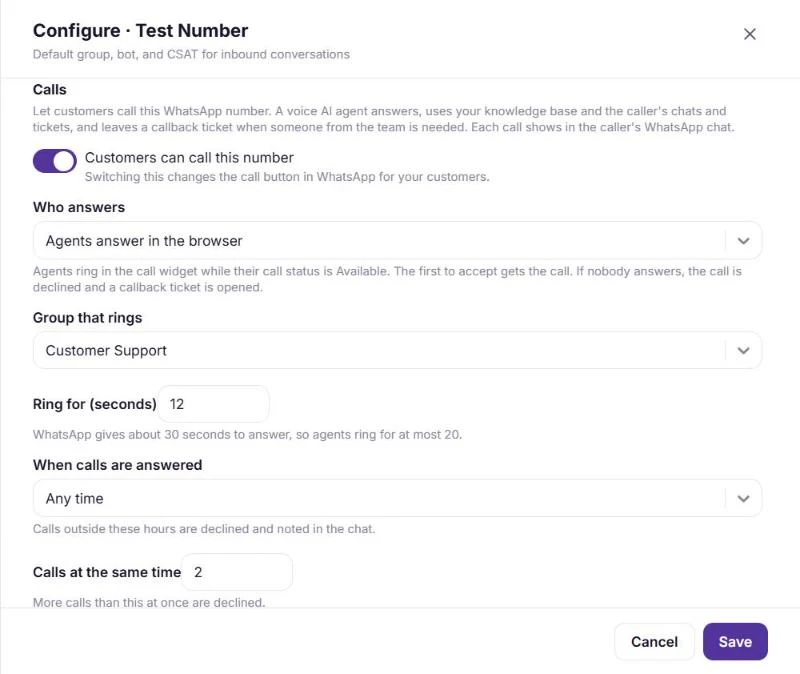
The Calls section, with calling switched on. Choose who answers
Under Who answers, pick Voice AI agent answers for every call, or Agents first, then the voice AI agent to ring your team and let the agent pick up whatever they miss. Then choose the Voice agent when nobody answers, the Group that rings, a ring time of up to 20 seconds, call hours, and how many calls the number takes at once. Save.
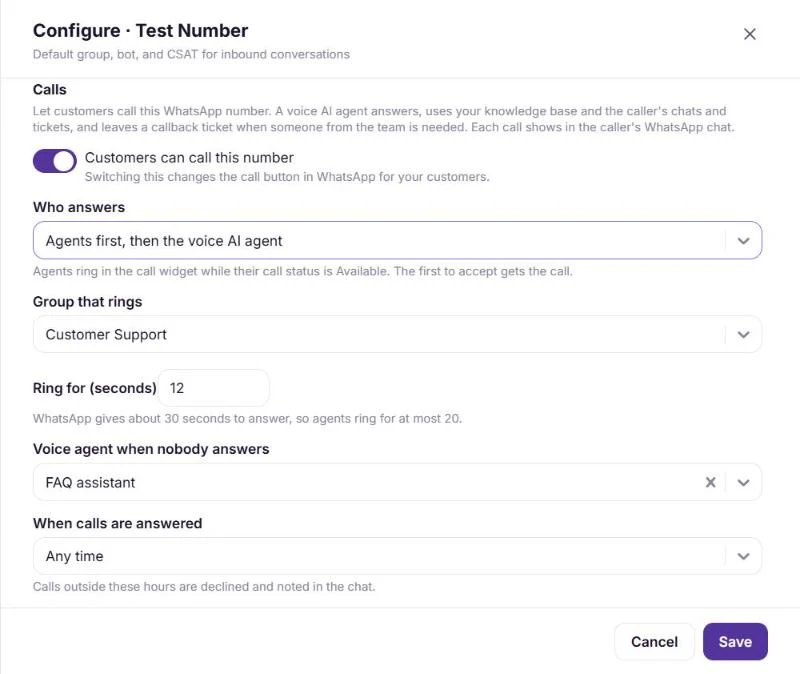
Agents first, with the voice AI agent as the fallback.
Frequently asked questions
Do we need a telephony provider for WhatsApp calls?
No. WhatsApp calls run over WhatsApp itself. A telephony provider is only needed for ordinary phone calls on a phone number.
Which languages can the voice agent speak?
English, Hindi, Marathi and Telugu. Callers can switch any time by saying the language name, and their choice is saved on the contact.
Why was a call not answered?
Usually because calling is off for the number, the call came outside call hours, the number was at its call limit, no voice agent or ring group is set, or the month’s AI voice minutes ran out. Each reason is written as a private note in the customer’s chat.
Do customer calls cost anything on Meta’s side?
Meta does not charge for calls customers start. AI voice minutes count toward your Samvaads plan’s monthly voice minutes when your plan sets a limit.
Want us to set it up with you?
Early customers onboard with our team beside them.