
How to sell from a product catalog in WhatsApp
Customers already ask about products in WhatsApp. With a catalog, they see each product’s photo and price right in the chat, add what they want to a cart and send it to you, without visiting a website. Samvaads keeps the WhatsApp catalog in step with your product list, so a price or photo you change in Samvaads changes in WhatsApp too.
What you need
- A WhatsApp number connected to Samvaads (see how to connect your WhatsApp Business number)
- Admin access to the Meta business that owns that WhatsApp number
- A photo of each product, and a web page for it (or one page that a link pattern can point to)
Steps
Add your products with photos
Go to Admin → Sales → Quotes & catalog → Products and choose New product, or Import CSV / Excel for many at once. Give each product a name, SKU, description and price. Under Images & video, add up to 10 photos and one short video; the first photo is the main one in WhatsApp. The WhatsApp catalog section takes an optional page link, a brand, Stock to sell and a Variant group for sizes or colours.
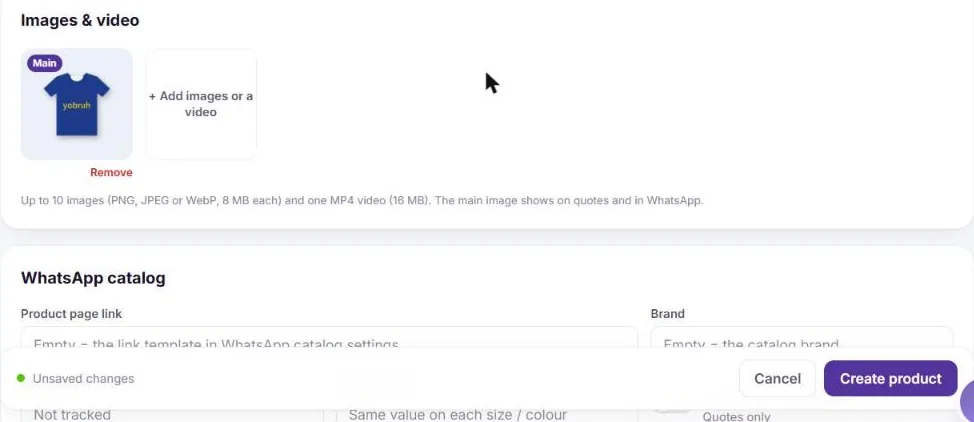
Photos and the WhatsApp details on a product. Create a catalog in Meta Commerce Manager
In Meta Commerce Manager, choose Add products to create a catalog in the business that owns your WhatsApp number. Pick Online products, leave Connect to a partner platform off and give it a name. When Meta asks how to add products, choose Add products later: Samvaads fills the catalog for you.
Share the catalog with Samvaads
In Meta Business settings → Data sources → Catalogues, open your catalog, choose Assign partner and enter Samvaads’ business ID 1321547828344764 with full control of the catalog. Then tell us through Help → Chat with support in Samvaads, and we finish connecting it. This is a one-time step for each catalog.
Link the catalog to your WhatsApp number
In WhatsApp Manager → Account tools → Catalogue, choose Choose a catalogue and connect yours. Keep Show "Add to basket" button on so customers can fill a cart. Then in Samvaads go to Admin → Channels → WhatsApp (WABA), choose Configure on the number, pick the catalog under WhatsApp product catalog and save.
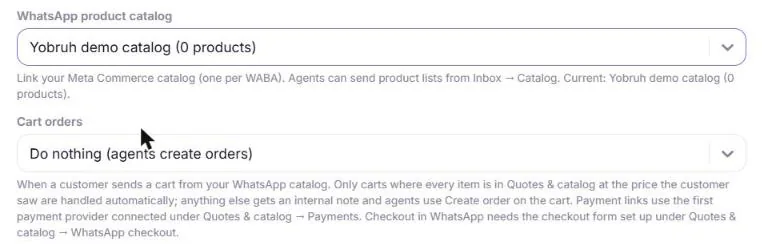
The catalog linked on the number’s Configure panel. Turn on the WhatsApp catalog in Samvaads
Go to Admin → Sales → Quotes & catalog → WhatsApp catalog. Turn on Send products to the WhatsApp catalog, pick the Catalog, and set a Product page link pattern such as https://yourstore.com/products/{sku} for products without their own link, plus your Brand. Leave Keep the catalog up to date on so changes go to WhatsApp every few minutes. Click Save.
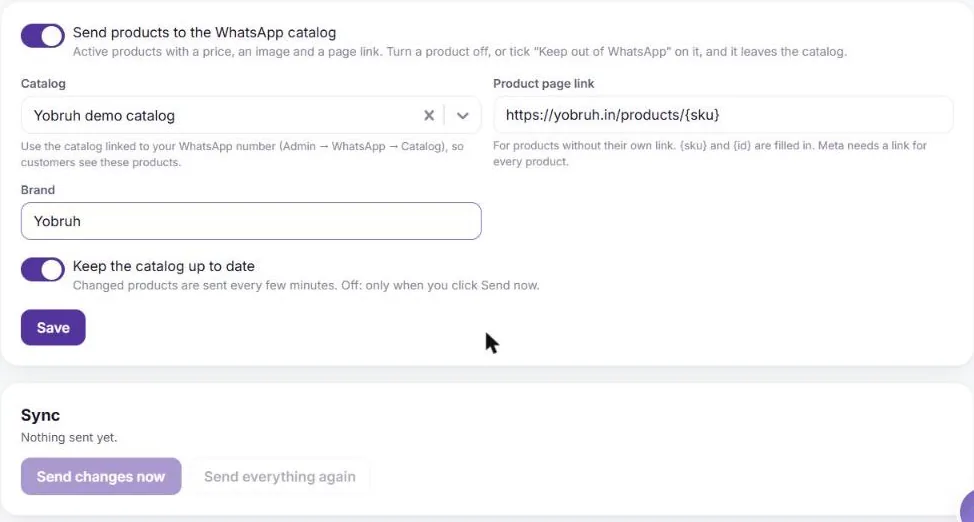
The catalog, the page link pattern and the brand. Send your products and check them
Click Send changes now. Products show as Being processed while Meta checks them, then as In WhatsApp, usually within minutes; Check with Meta fetches the result straight away. Anything WhatsApp cannot show is listed under Can’t be listed with the reason, such as a missing photo or price, so you can fix it on the product.
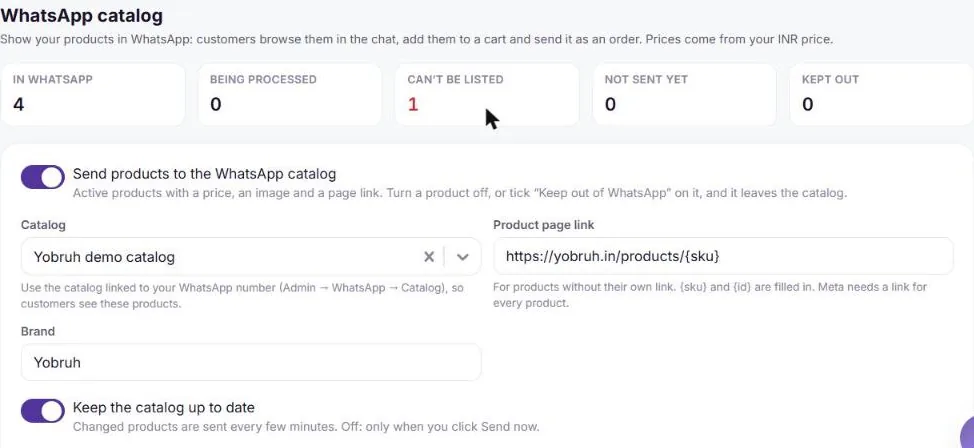
Four products live in WhatsApp; one needs a price. Let your AI agent show products
In Admin → Automation & AI → AI agents, open the agent on your WhatsApp number and, under Allowlisted tools → WhatsApp commerce, tick Find WhatsApp products, Send a product card, Send a product list and Send the catalog. Save and publish. When a customer asks for a product, the agent finds it in your catalog and sends the card with its photo, price and an add-to-cart button. It only shows products that are in your WhatsApp catalog.
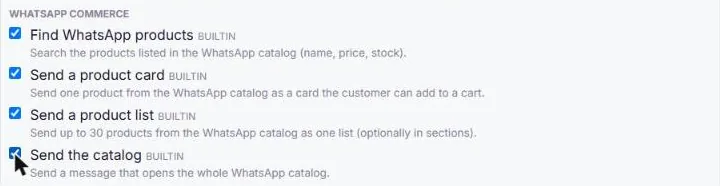
The four WhatsApp commerce tools for an AI agent. Send products from the Inbox
Your team can send products too. In a WhatsApp chat, switch to reply and choose the WhatsApp catalog button. Pick one product, or several for a product list with a section title, then Send product list, Send single product or Send catalog button.
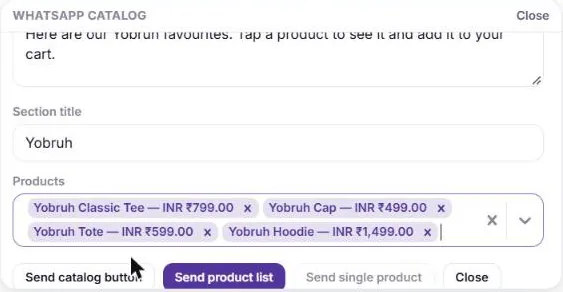
A four-product list ready to send from the Inbox. What your customer sees
The customer gets the product list in the chat, taps View items to see each product with its photo and price, adds items with +, and reviews the cart before tapping Place order.
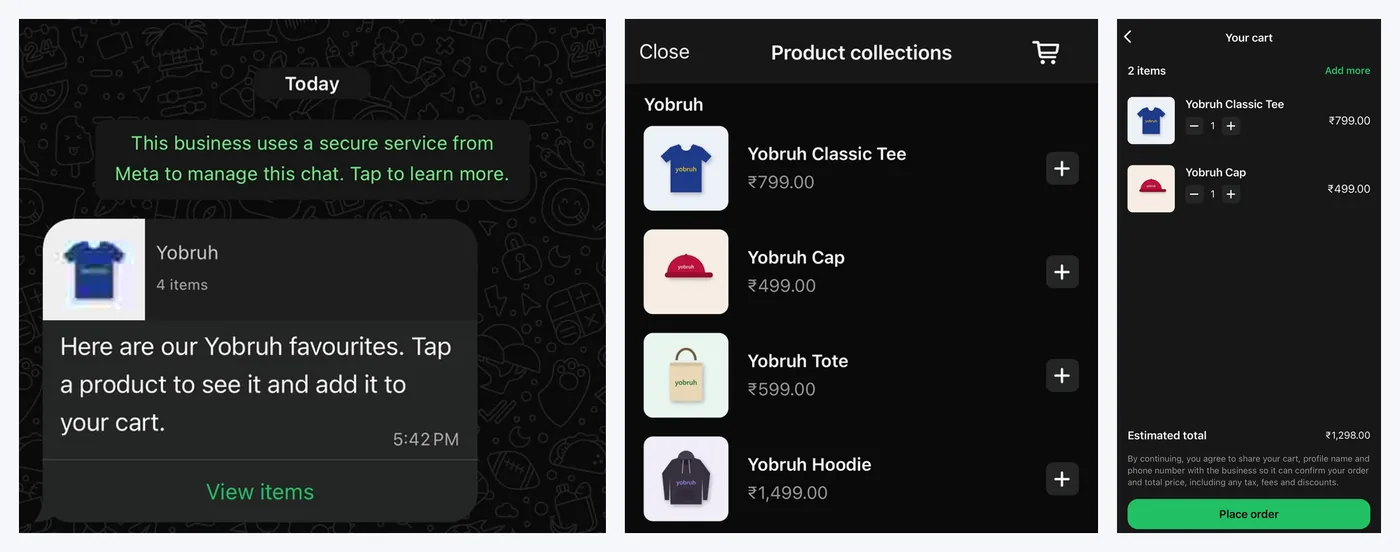
From the product list to the cart, without leaving WhatsApp. Turn the cart into an order
The sent cart lands in the same chat in your Inbox with each item and the total. Choose Create order to review the lines against your product prices, issue an invoice and send it on WhatsApp. To do this automatically, set Cart orders on the number’s Configure panel: create the order, add an invoice and payment link, or start a checkout in WhatsApp.
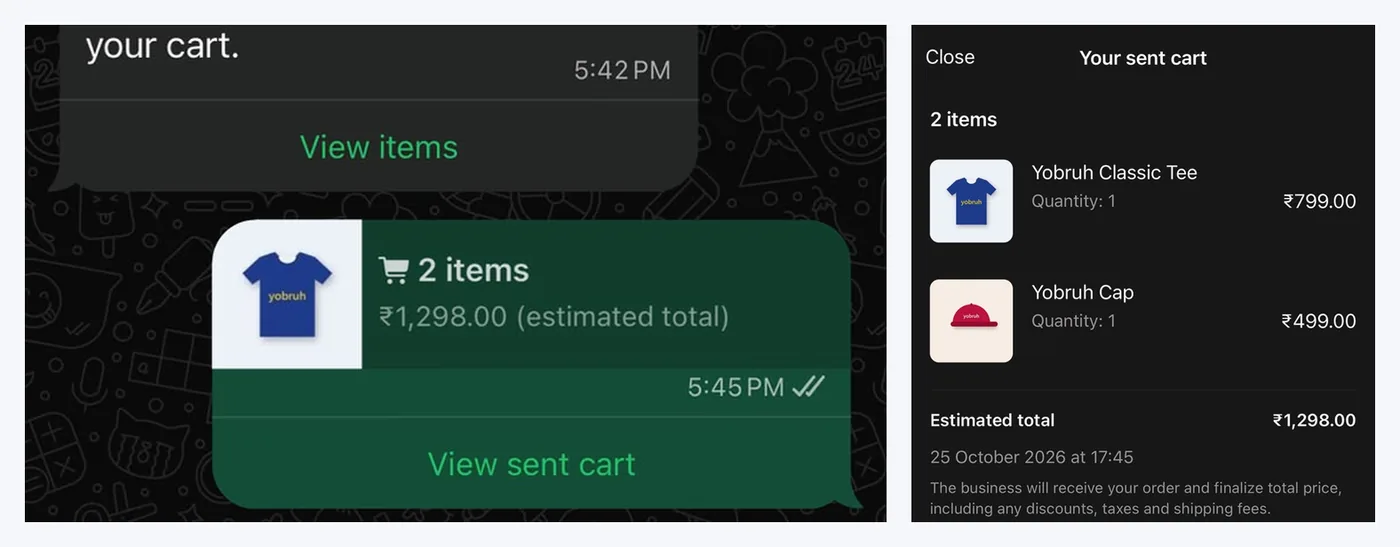
The customer’s sent cart.
Products stay in step from then on: change a price, a photo or the stock in Samvaads and WhatsApp updates within minutes. Turn a product off, or tick Keep out of WhatsApp on it, and it leaves the catalog.
Frequently asked questions
Do I need a website?
WhatsApp needs a page link for every product. If your products don’t have their own pages, set a Product page link pattern on the WhatsApp catalog page and it is filled in for each product.
Why does a product say it can’t be listed?
WhatsApp needs a photo, a price in your main currency and a page link for each product. The reason is shown next to the product under Can’t be listed; fix it on the product and the next sync sends it.
How do customers pay?
When the cart becomes an order you can issue the invoice with a payment link, offer cash on delivery, or take the customer through a checkout in WhatsApp for their address, delivery option and payment.
Can I keep some products out of WhatsApp?
Yes. Tick Keep out of WhatsApp on the product. It stays available for quotes and leaves the WhatsApp catalog at the next sync.
Want us to set it up with you?
Early customers onboard with our team beside them.