
How to get an AI overview of every conversation and lead
Picking up a long ticket or a lead someone else worked means reading everything first. The AI overview gives you the story and what to do next in a few seconds.
What you need
- Copilot in your workspace
- A super admin, to turn it on
Steps
Turn it on
Go to Admin → AI usage guards and turn on AI Overview for the places you want it: chats, tickets, leads, contacts, accounts and deals. It is off until you do.
Read the overview
Open a chat or ticket: the AI Overview card in the right pane sums it up in two or three lines and suggests up to three next steps, each with a reason. Leads have it on their Overview tab, and deals in the right column.
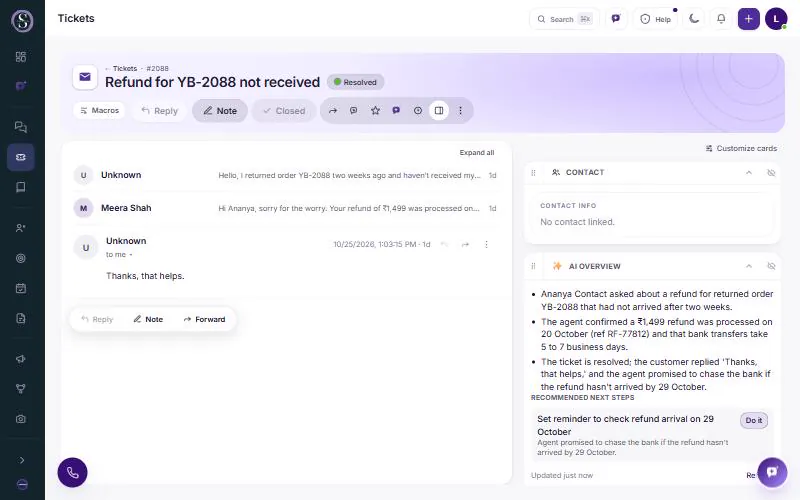
The story so far, and what to do next. Act on a step
When a step is something Copilot can do, such as drafting a reply, sending a CSAT survey or updating a lead, choose Do it. Copilot opens it for you to review, edit and confirm.
Keep it fresh
The overview is written when you open the card and reused until new messages arrive. Choose Update when the card says there is new activity, or Refresh for a new one.
Frequently asked questions
Does it send anything to the customer?
No. The overview and its steps are only for your team, and nothing is sent or changed until you confirm it.
Does it use AI tokens?
It uses your Copilot allowance. An overview is written when the card is opened and reused until there is new activity, so it isn’t written again every time.
Want us to set it up with you?
Early customers onboard with our team beside them.