
How to build a landing page that captures leads
Sending campaign and ad traffic to your home page wastes it. A landing page with one offer and one form turns more of those visitors into leads, and you can build it without a developer.
What you need
- A web form for the page to use, or a meeting type for bookings
- Permission to create campaigns
Steps
Start a page
Go to Admin → Marketing → Landing pages and choose New page. Give it a name; its address is made from the name.
Lay it out
Start from a layout (Lead capture, Event sign-up, Product launch or Book a demo) or drag blocks onto the page. Use two or three columns to put the form beside your pitch. Click a block to change it: pick the web form for a Form block, the meeting type for a Booking block, or your number for a WhatsApp button.
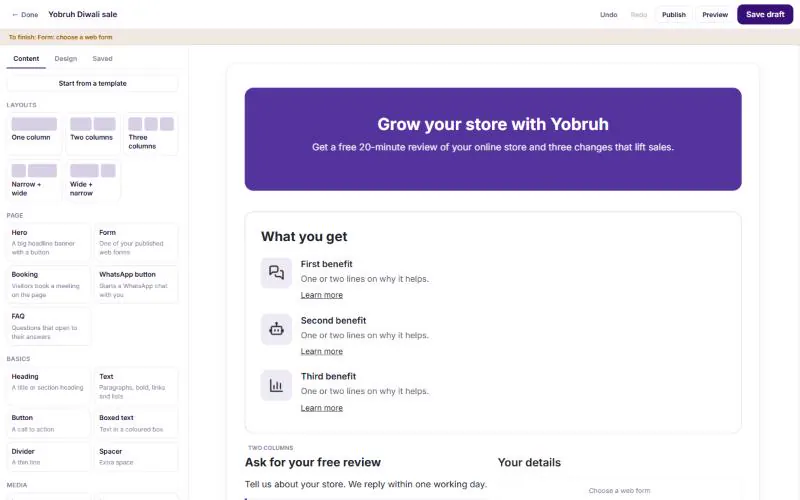
Blocks on the left, the page on the right. Or let Copilot draft it
Describe the page, for example “A Diwali sale page for Yobruh: up to 40% off bags, a form to get the offer list, FAQs on delivery and returns”, and choose Draft with Copilot. Check the To finish list it leaves, such as a form to choose or a picture to add.

A page Copilot drafted from one description. Preview and publish
Choose Preview to see the page at phone, tablet and desktop widths, then Publish. Edits stay in the draft until you publish again.
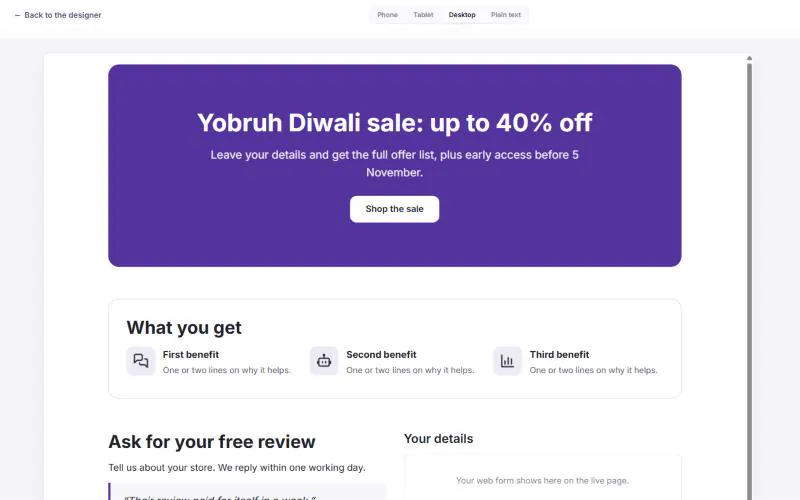
The page at desktop width. Share the link and track results
Copy the link from the page’s top bar and use it in a campaign, an ad or a bio. Add utm_source (for example ?utm_source=instagram) to see each source. The Results tab shows views, visitors, form submissions, bookings and conversion by source.
Frequently asked questions
Where do the page’s leads go?
A form or booking on the page creates the contact and, when the form is set to, a lead, with the page as its source and where the visitor came from.
Can I use my own domain?
Pages are published on your workspace address. Link to them from your site, ads and campaigns.
Want us to set it up with you?
Early customers onboard with our team beside them.