
How to design branded emails in Samvaads
One designer covers every email Samvaads sends for you, so your newsletters, follow-ups and ticket replies all look like your brand.
What you need
- Your logo and brand colours
- Permission to edit the kind of email you are designing
Steps
Open the designer
Choose a designed email where you write one: Leads → Sequences → Templates → New template → Designed email, a new email campaign, Admin → Email templates (switch the body to Designer), or a CSAT survey’s email. Choose Open designer or Design the email.
Start from a template or a layout
On the Content tab, pick a template such as Newsletter, Offer or Product launch, or a layout with one to three columns. Then add blocks: logo header, heading, text, image, button, video, feature list, quote, social links, divider and spacer.
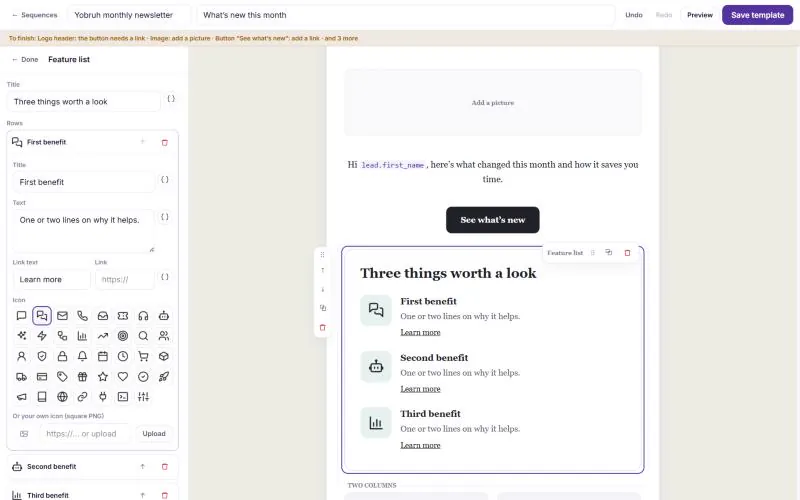
Edit a block on the left, see it on the right. Make it yours
Click a block to change its text, picture, link or icon. On the Design tab, set the accent colour, background, font and the preview line inboxes show after the subject. The To finish list shows what is still missing.
Preview on every screen
Choose Preview to see the email at desktop, tablet and phone widths, with a real lead’s or ticket’s details filled in. Send a test to your own inbox before you use it.
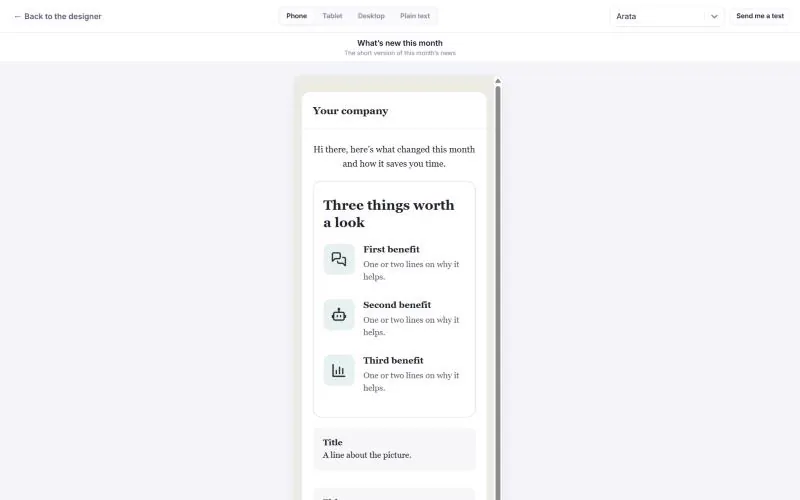
Columns stack on a phone. Save and reuse it
Choose Save template. Saved designs appear on the Saved tab, ready to start your next campaign, sequence email or ticket reply.
Frequently asked questions
Do designed emails work in every inbox?
Yes. They are built to show correctly in Gmail, Outlook and phone mail apps, with a text version for inboxes that don’t show designs.
Can Copilot draft the email?
Yes. On an email template, choose the Copilot icon, describe the email, and Copilot fills in the subject and blocks for you to check.
Want us to set it up with you?
Early customers onboard with our team beside them.