
First things first: set up your new Samvaads workspace
Your workspace is ready the moment you activate your admin account. These are the first things to set up so your first customer message lands in the right place and someone on your team answers it. Watch the video, or follow the steps below; each one links to a longer guide.
What you need
- Your admin account, activated from the welcome email
- Access to your website’s HTML, or someone who can paste a snippet into it
- Your support mailbox (Gmail, Microsoft 365 or any IMAP mailbox)
Steps
Find your way around
You land on the Dashboard. The sidebar has Inbox, Tickets, Knowledge Base and Customers; the top bar has search, Help, notifications and quick create. Press Ctrl K (⌘ K on a Mac) to jump to any page or setting.
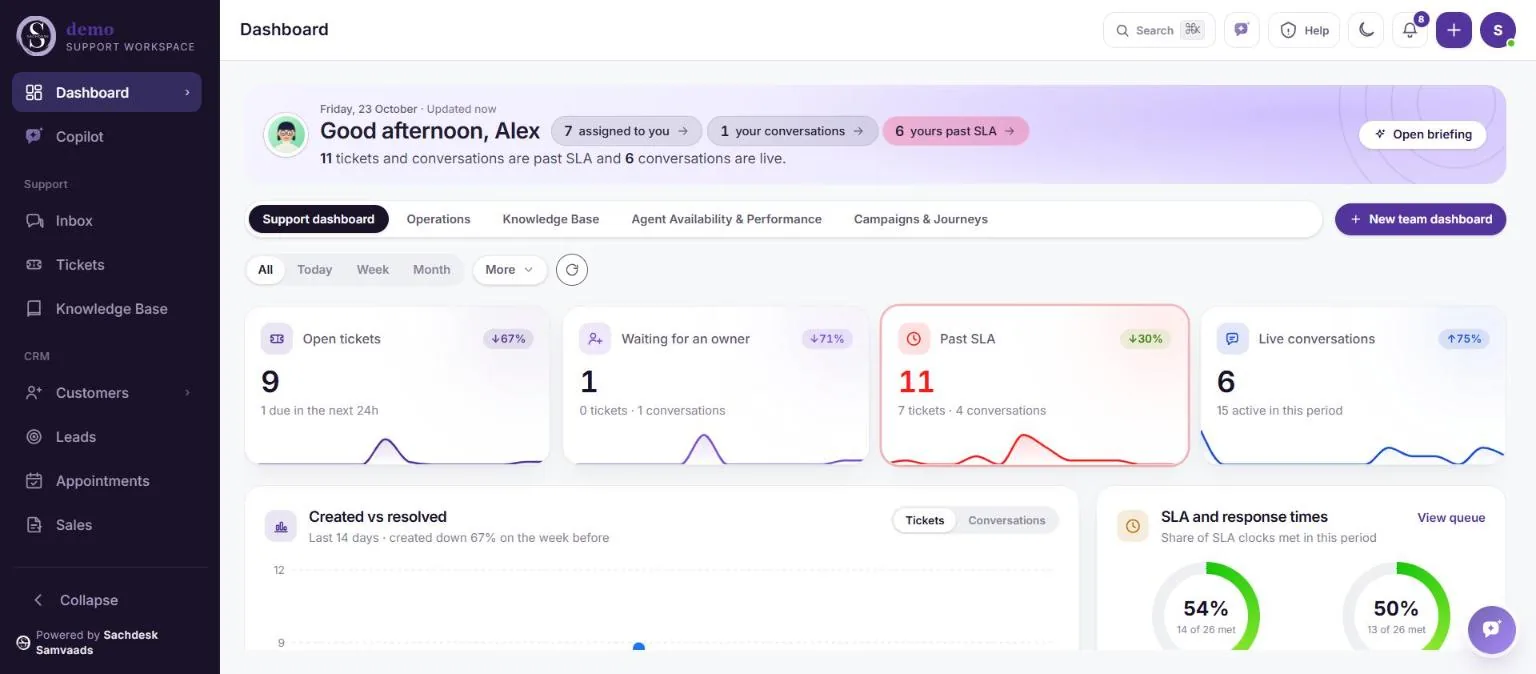
The dashboard you land on after signing in. Add the chat widget
Open Admin → Channels → Website widget. Turn chat on for your website and your customer portal, pick your colour and launcher, add suggested questions, then Copy snippet and paste it just before the closing body tag on your site. See add the chat widget.
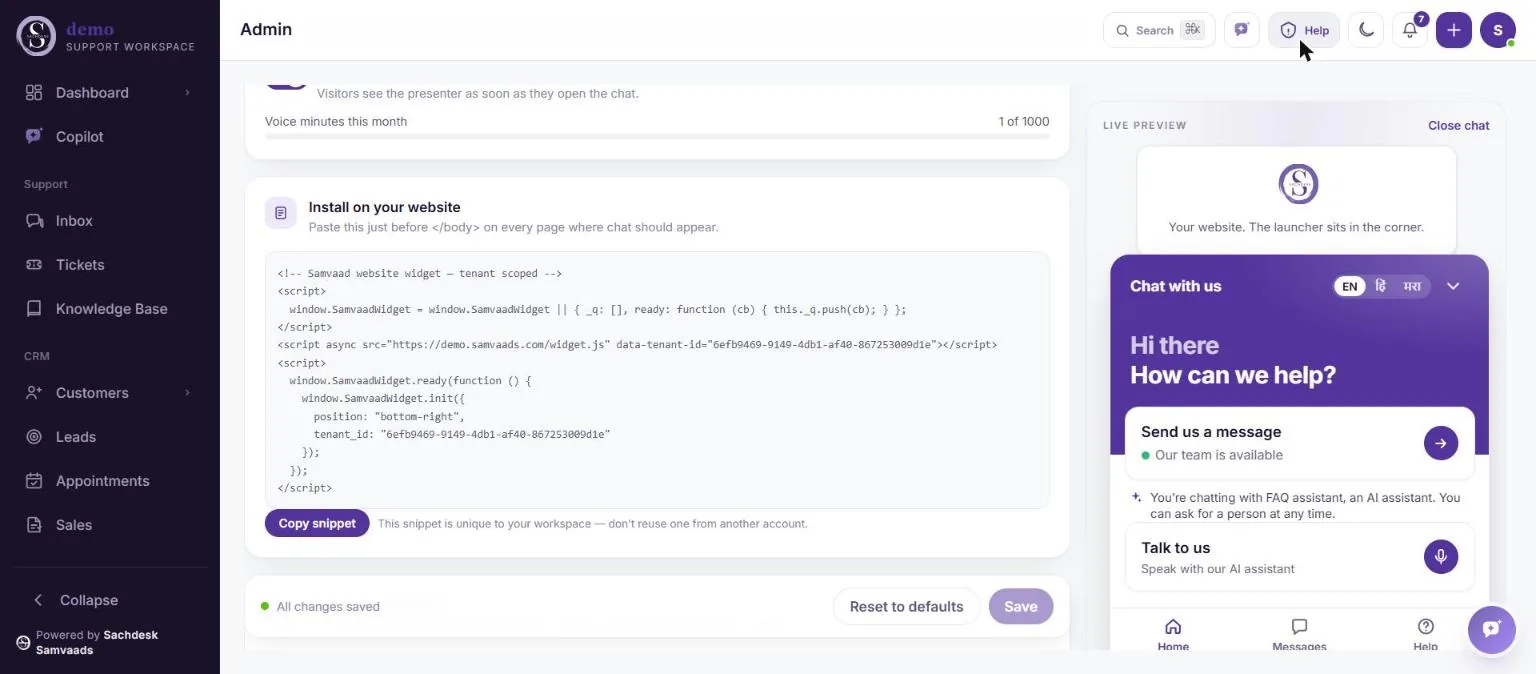
Copy the snippet; the live preview shows what visitors see. Connect your support email
In Admin → Channels → Email, choose Connect and pick Gmail, Microsoft 365, a Samvaad email address, or Custom IMAP / SMTP. Every email becomes a ticket, and replies go out from your address. See connect your email.
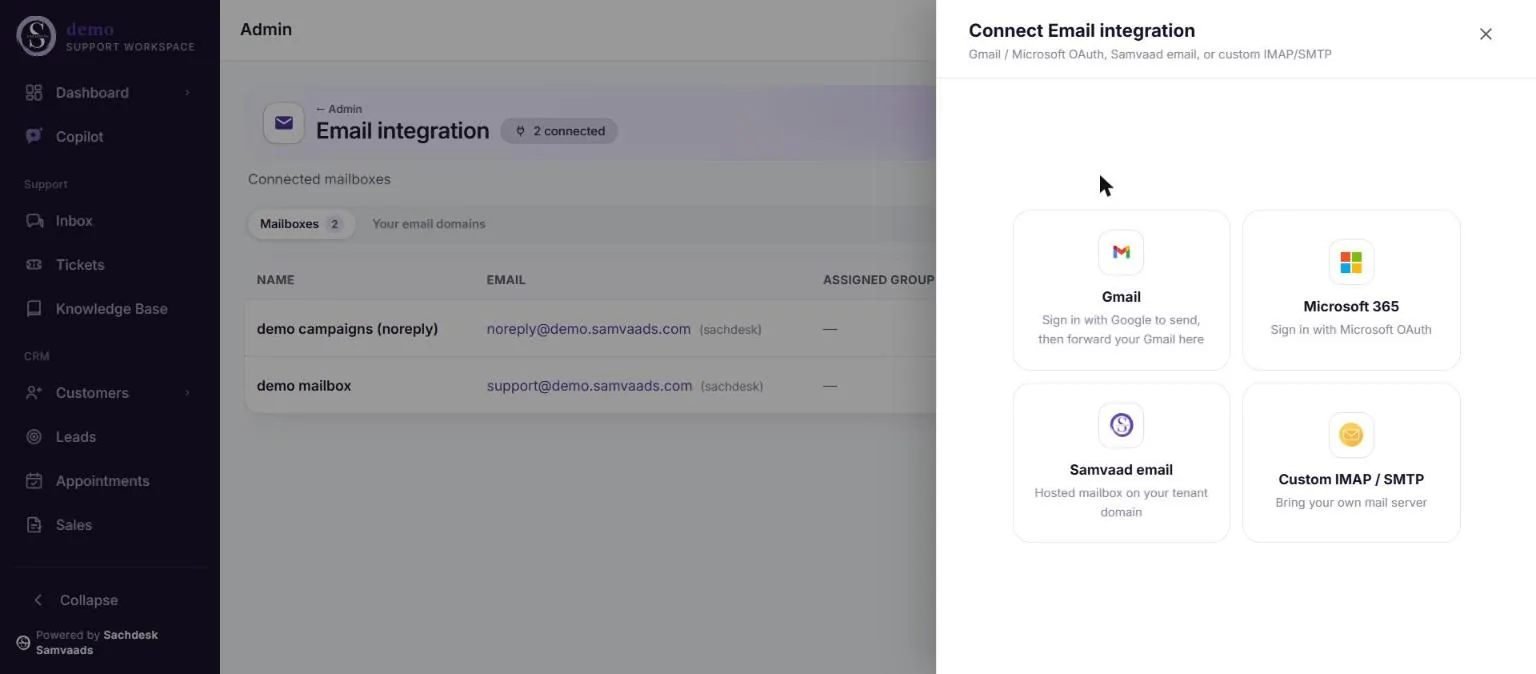
Four ways to bring email in. Invite your team
Go to Admin → Team & access → Users and choose New user. Enter a name and email, pick a role (admins set things up, users answer customers) and a group. They get an activation email. See invite your team.
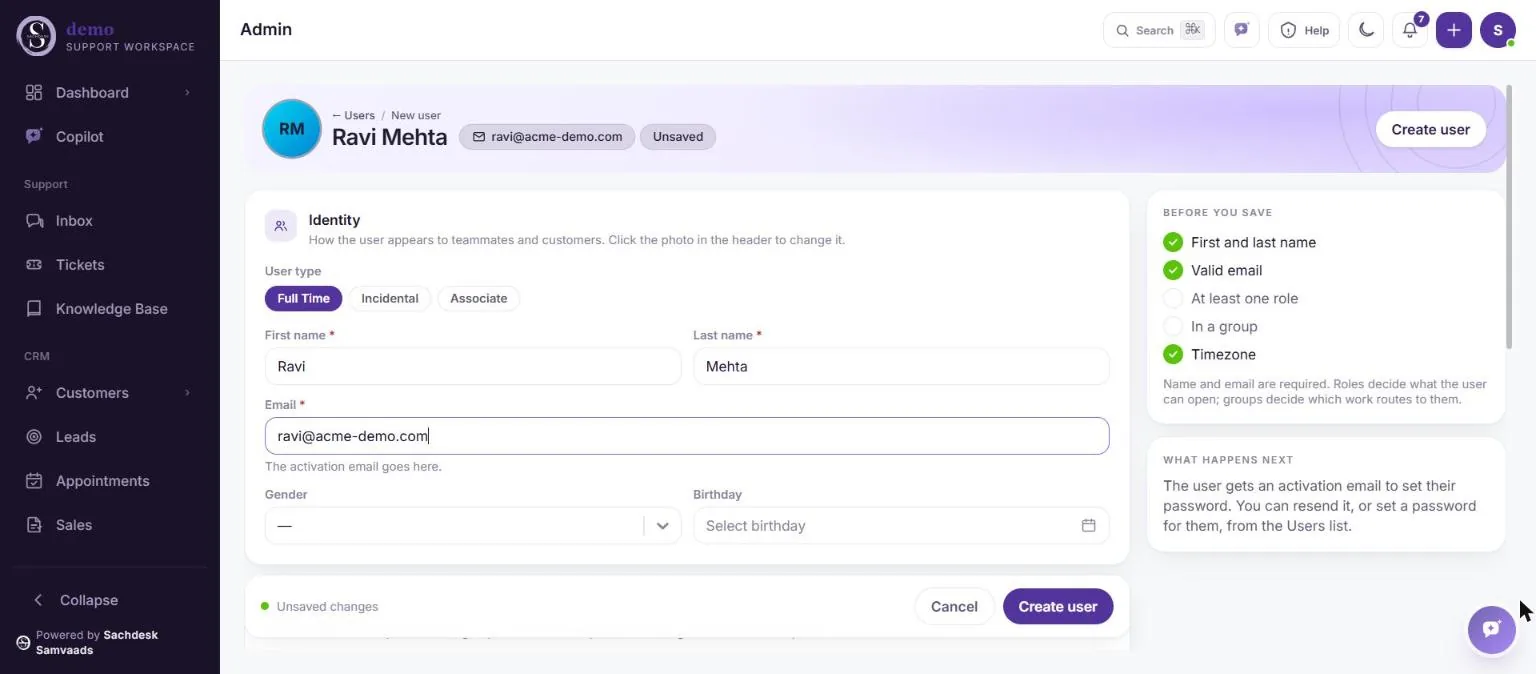
Name, email, role and group. Write your first help article
Open Knowledge Base, create a category such as Orders & delivery, then New article. The portal preview shows how customers will read it. Your agents, Copilot, AI agents and customer portal all answer from these articles. See build your knowledge base.
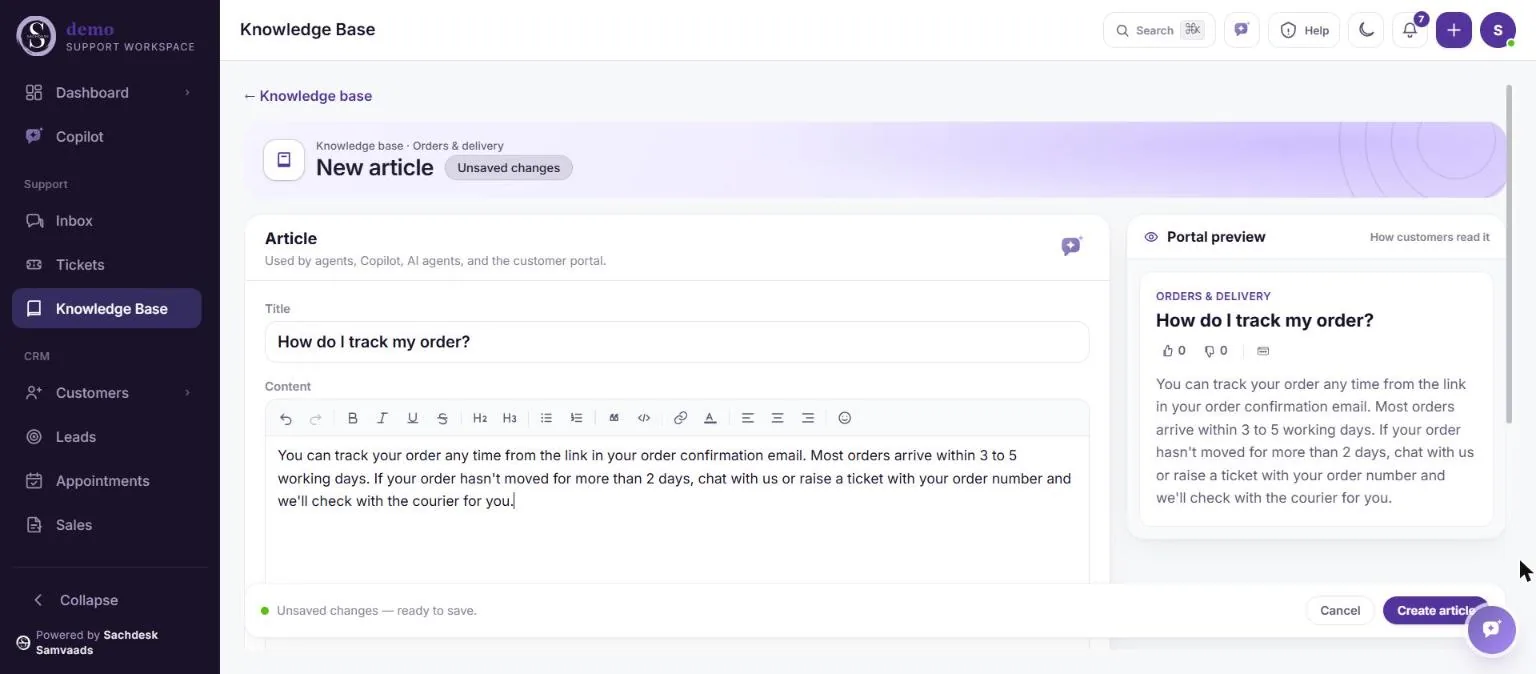
Write once; the preview shows the customer view. Brand your customer portal
Your customers get their own help centre at your workspace address, under /support. In Admin → Customizations → Portal customization, set colours, logo, the hero text and the shortcut cards, then Publish live.
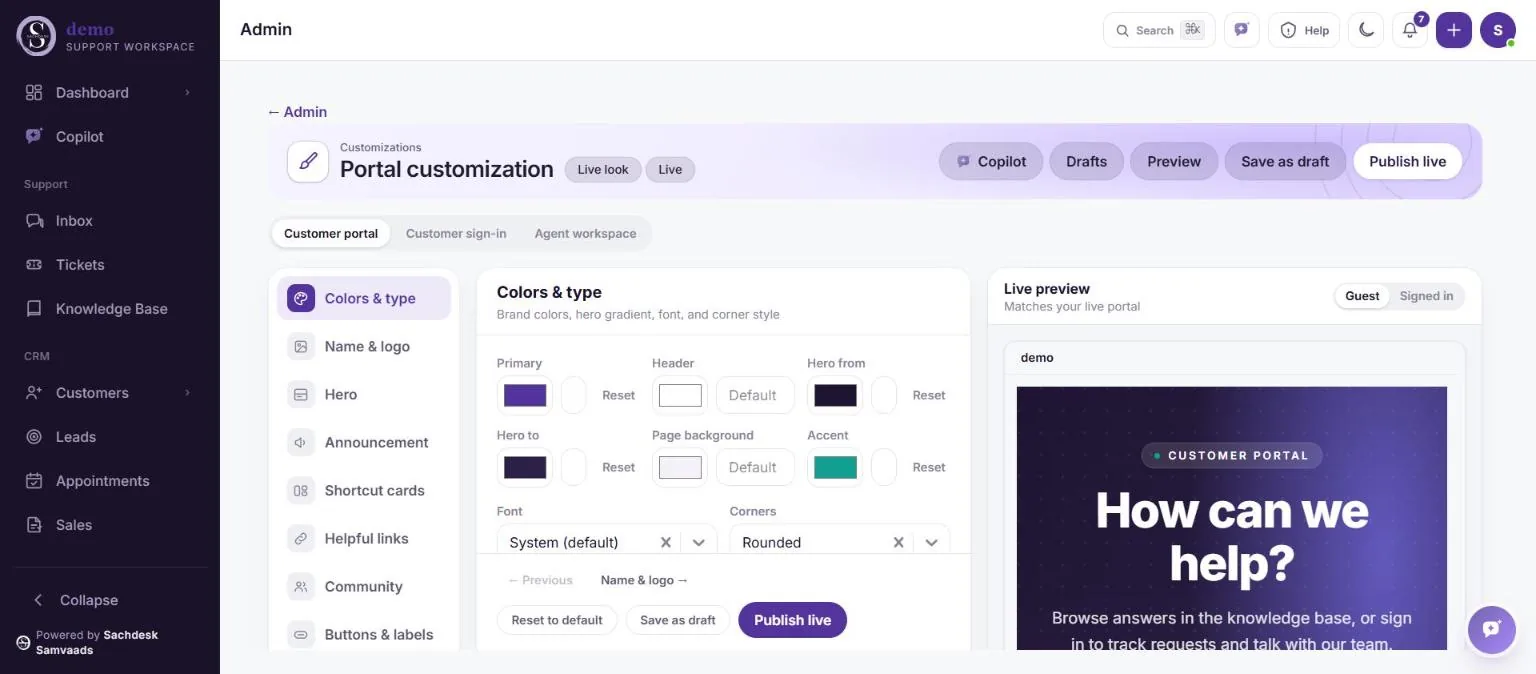
Brand the portal, with a live preview. See what your customers see
Open your portal. Customers search your articles, or ask a question in their own words under Ask the knowledge base, and the AI answers from your articles only. They can sign in to raise tickets and follow their status, or start a chat.
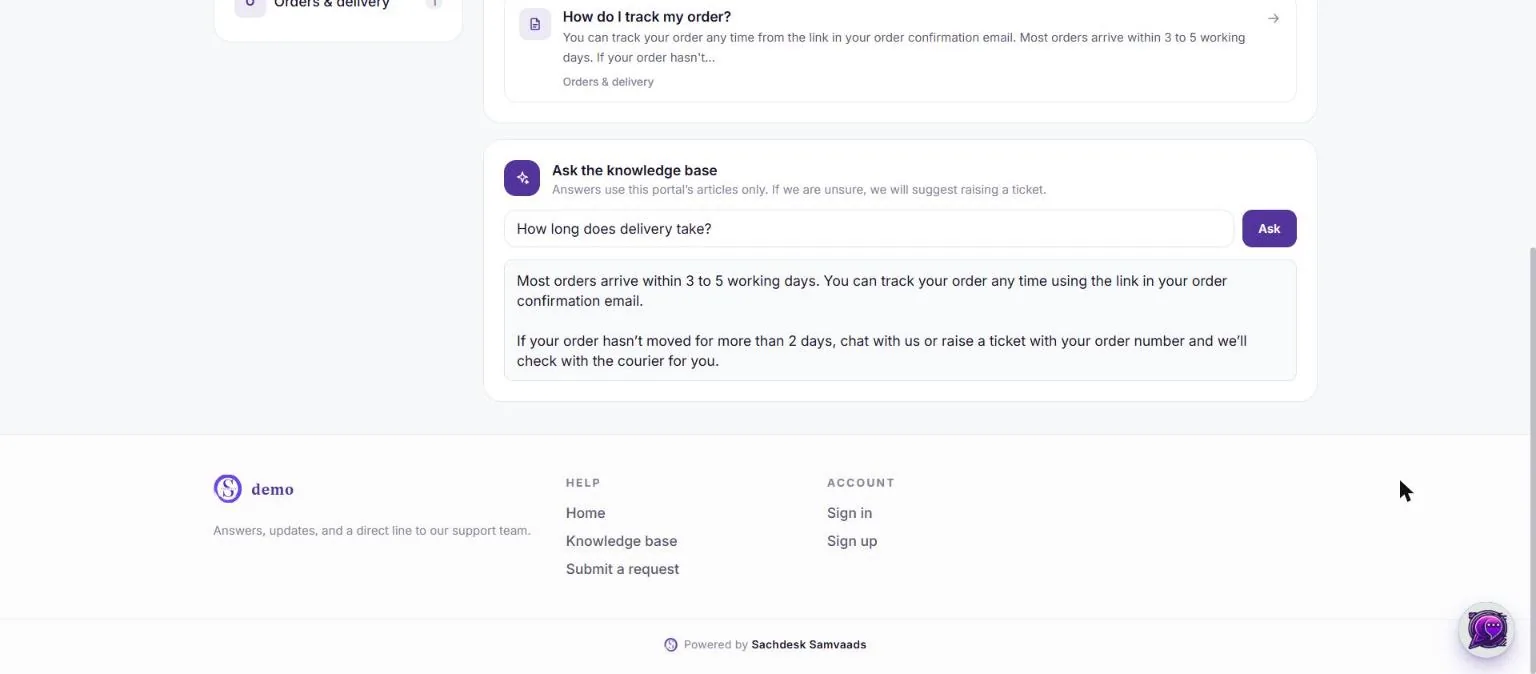
An answer drawn from the article written a minute earlier. Answer your first conversation
Send yourself a test message from the chat widget. It appears at the top of Inbox; open it, reply, and press Send. When an AI agent hands a chat to your team, it leaves a summary and opens a ticket so the follow-up is tracked.
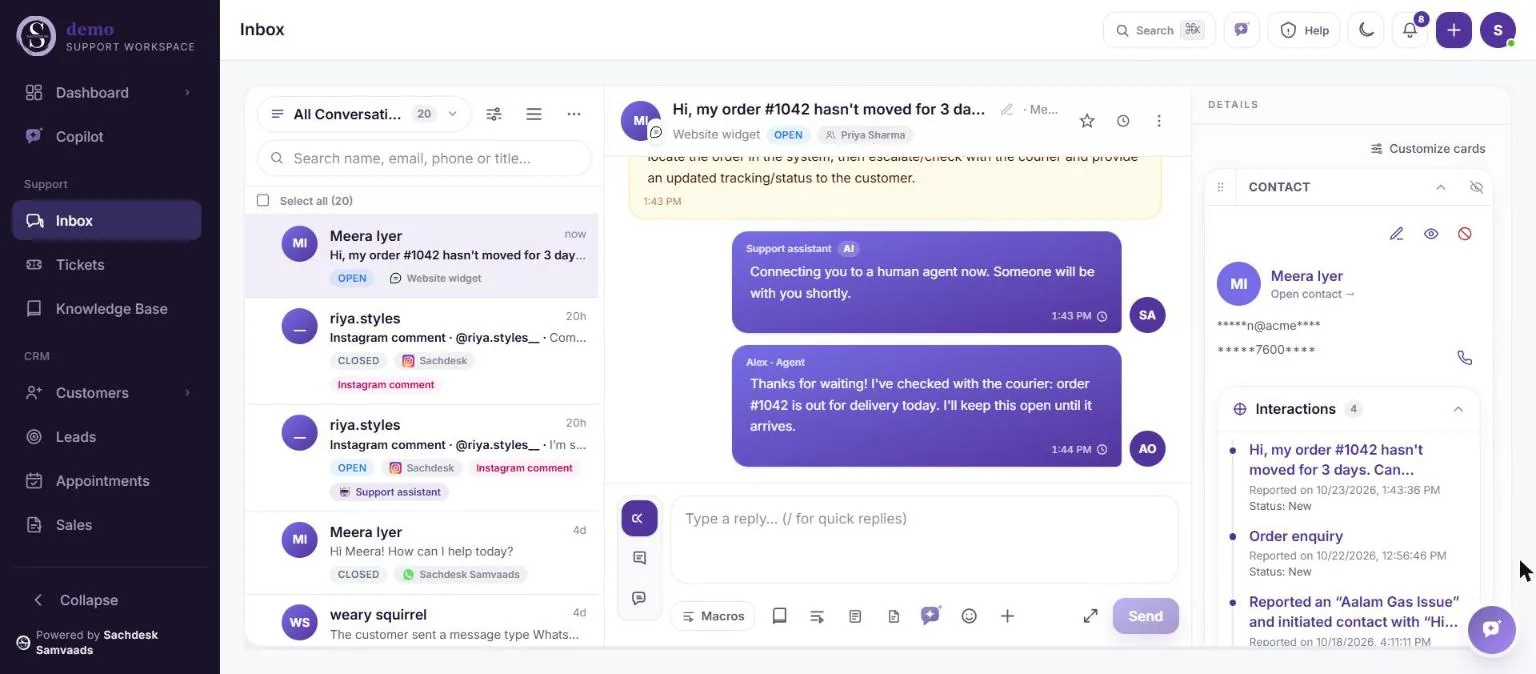
Reply from the Inbox; the customer sees it in the same chat. Connect more channels when you are ready
The Admin hub has every setting in one place. Under Channels, connect WhatsApp, Instagram, Facebook Messenger, SMS, Telegram, voice and your store. They all land in the same Inbox. See connect WhatsApp.
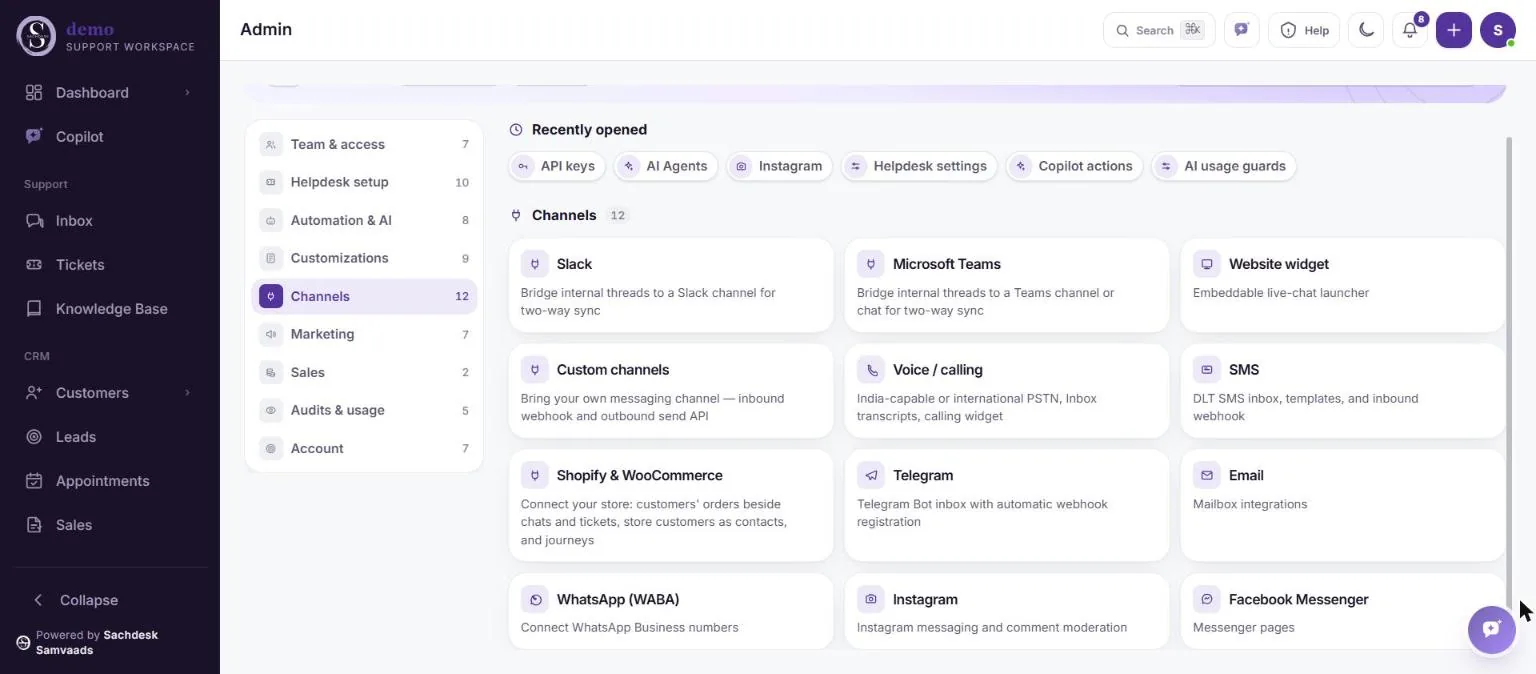
Every channel from one Admin area. Get help any time
The Help menu in the top bar has the Help Center, Guided tours, Chat with support and Raise a ticket. Each day, Open briefing on the dashboard gives you a Copilot summary of what needs you.
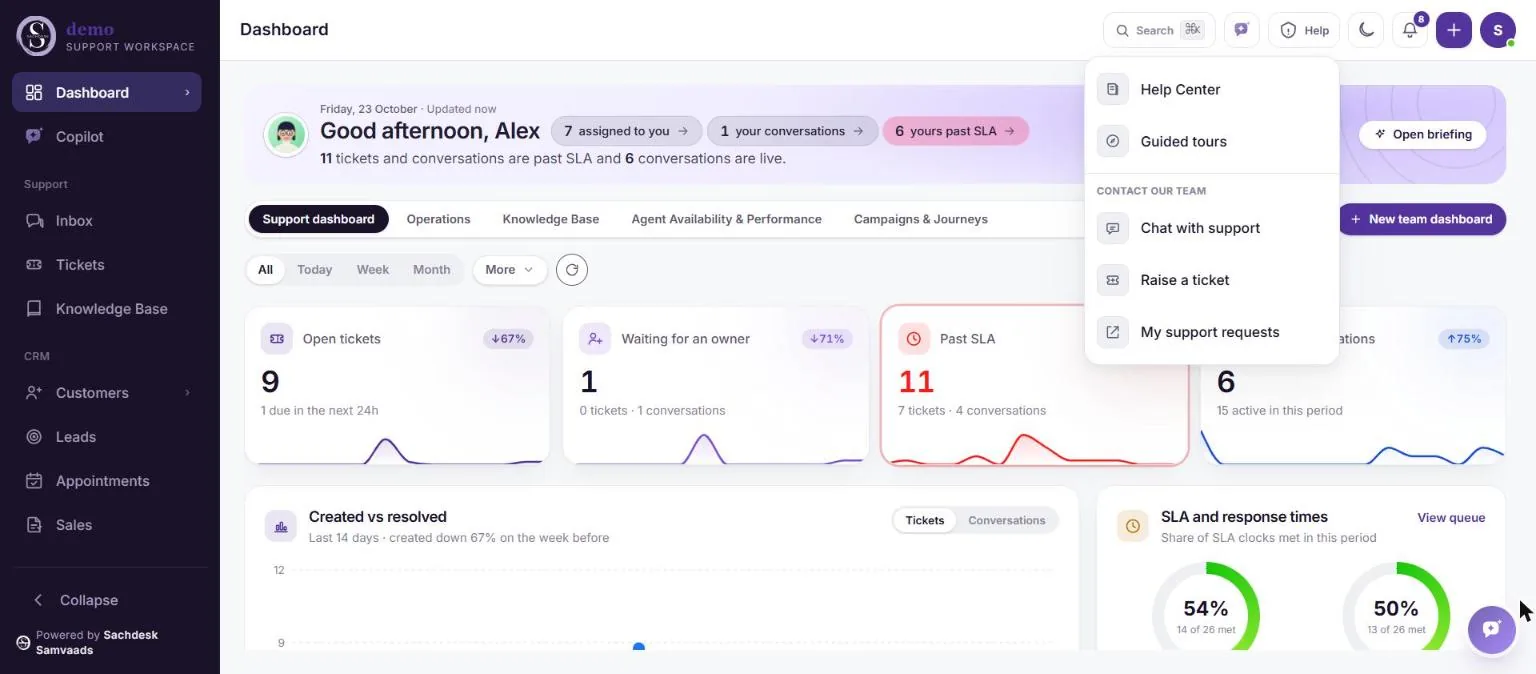
Help, tours and a direct line to our team.
Frequently asked questions
Do I have to do these in order?
No. Each step stands on its own, but the chat widget and email are what bring the first customer messages in, so they are the best place to start.
Where is my customer portal?
At your workspace address followed by /support, for example yourcompany.samvaads.com/support. Turn its chat on or off in Admin → Website widget.
Can someone help us set it up?
Yes. Use Help → Chat with support in the app, or book a walkthrough.
Want us to set it up with you?
Early customers onboard with our team beside them.