
How to keep your pipeline tidy: tasks, duplicate leads and saved views
A pipeline gets messy fast: follow-ups forgotten, the same company added twice, and everyone rebuilding the same filters. These three tools keep it clean.
What you need
- Leads in your workspace
Steps
Add a task
Choose New task in Leads → Tasks, on a lead’s Tasks tab or in a deal’s Tasks panel. Give it a title, a due date (you get a reminder then), a priority and who it is for.
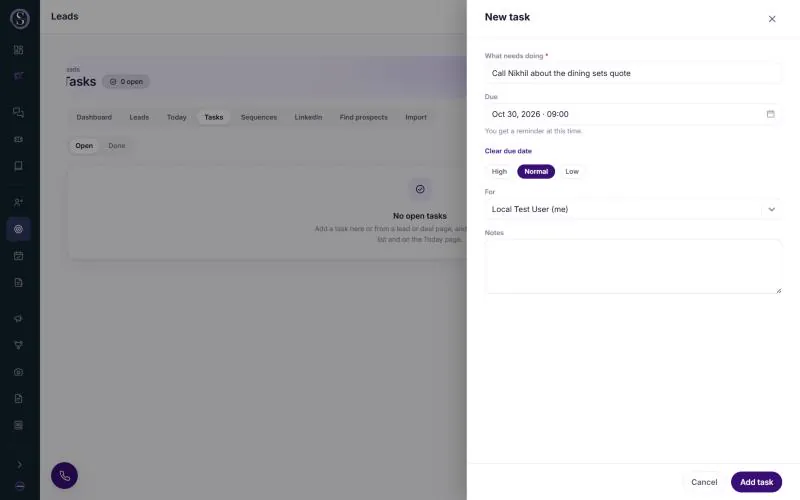
A task with a due date and reminder. Work your task list
Leads → Tasks shows your open and done tasks, with filters for due date and whose tasks. The Today page has a Your tasks today card. Ticking off a task on a lead adds it to the lead’s timeline.
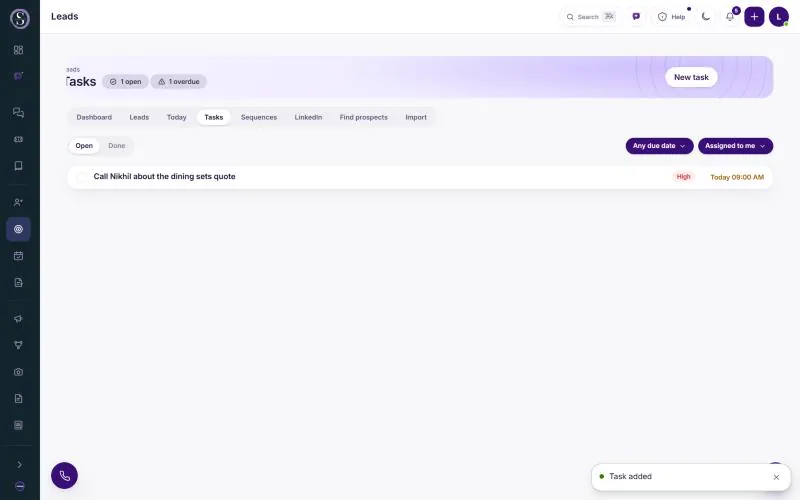
Open tasks, with overdue ones flagged. Keep deals moving
Each deal has its own Tasks panel and a timeline of when it was created, its stage changes and finished tasks.
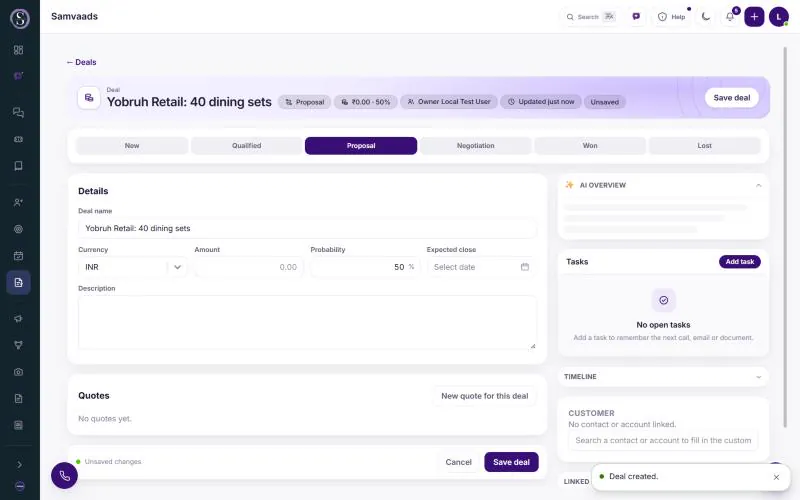
Tasks and the timeline on a deal. Merge duplicate leads
When a lead looks like another one, a note at the top names it and says why. Choose Compare and merge, pick the lead to keep, and choose Merge leads. The kept lead gets both histories, and the other lead’s link opens it. If they are different, choose Not a duplicate.
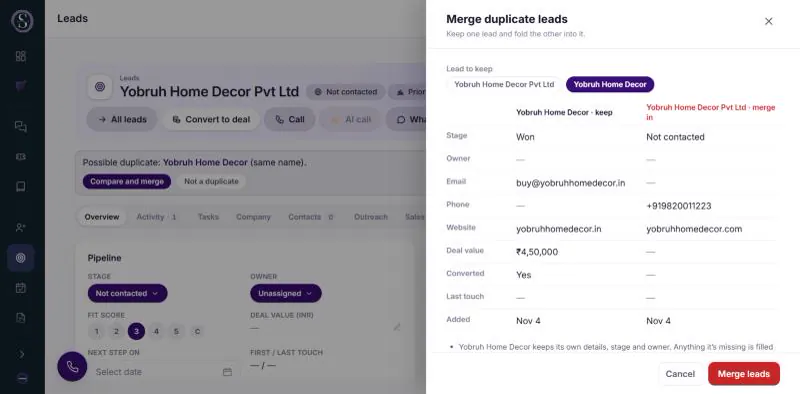
Compare both, keep one. Save your filters as a view
On Leads → Leads, set the filters you use often, choose Save view and name it. Open it next time from Views. Owner: me in a view means whoever opens it, so one view works for every rep. Managers can Share with the team.
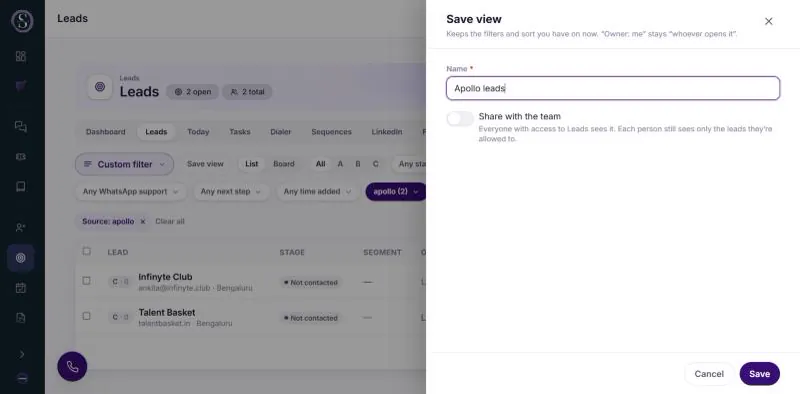
Name the view, and share it if you like.
Frequently asked questions
Can Samvaads stop duplicates being added?
Yes. A lead with the same website, email or phone as an existing lead can’t be added; you are pointed to the existing one. Near misses are flagged for you to merge.
Who sees my saved views?
Only you, unless a manager shares a view with the team. Everyone still sees only the leads they are allowed to.
Want us to set it up with you?
Early customers onboard with our team beside them.